Awesome Traffic Bot 2.2 is Dalga’s August 2026 release (build V2.2.0.0), out on August 28. It’s a 421 MB update available via the Update Center that installs without needing a reinstall or license change. It adds four features, including a built-in captcha solver that clears reCAPTCHA and challenge pages in about 20 seconds using your license credits.
A visual workflow editor, the Flow editor, turns a campaign into a canvas of connected nodes with branching, loops, variables, and AI steps. Browser profile storage lets you choose where profiles are kept and whether they are temporary or persistent, globally, per group, or per campaign. Local AI support runs AI Mode on Ollama models such as Qwen3 14B at zero API cost, alongside a refreshed cloud lineup of GPT-5.x, Claude, Gemini, Grok, and DeepSeek. Stability fixes across the engine and browser bridge complete the release.
| Awesome Traffic Bot 2.2 at a glance | Detail |
|---|---|
| Version | V2.2.0.0, UI 2.2.0, released 28 August 2026 |
| How to get it | Update Center inside the app, 421 MB, no reinstall, license unchanged |
| New: captcha solver | Inline solving in about 20 seconds; monthly included credits; top-ups from $5 per 1,000 that never expire |
| New: visual workflow editor | Flow view in step 3; seven node families; Weighted Split, Loop, variables, spintax |
| New: browser profile storage | Temporary and persistent folders, set globally, per group, or per campaign |
| New: local AI | Ollama with Qwen3 8B, 14B, Qwen3.6 27B (needs a capable GPU or a lot of RAM, see the hardware notice); cloud: OpenAI, Anthropic, DeepSeek, Gemini, Grok |
| Improved | Stability and performance across the engine and browser bridge |
| Price | Unchanged: from $24.90/mo annual ($299/yr) or $49/mo monthly, 2 devices |
Awesome Traffic Bot 2.2 is live. The Awesome Traffic Bot 2.2.0 build landed on 28 August 2026 through the built-in Update Center, and it ships four features that change how you build and run CTR campaigns: an included captcha solver, a visual workflow editor, browser profile storage, and local AI through Ollama. Here is what each one does, where to find it in the app, and how to switch it on today.
If you are already a user, you do not need to reinstall anything. If you are new, the 2.2 build of Awesome Traffic Bot is what you get from day one.
Open the Update Center in the app and you will see the Awesome Traffic Bot 2.2.0 release notes exactly as we published them. Four items are marked NEW, one is an IMPROVEMENT:
The rest of this post walks through each feature in the order you will meet them in the app. Everything below is taken from a live 2.2.0 install, not from a roadmap.
A captcha page is the most common reason a traffic bot session dies. Before version 2.2, the solution involved a third-party solving service, which meant another account, another API key, and another invoice. Awesome Traffic Bot 2.2 removes that entire layer. Just open Settings, and you’ll find a new Captcha Solver section. Inside, there’s an Included Captcha Solver panel that reports its status as Online and runs in auto-pilot mode.
Here is how it behaves in practice:
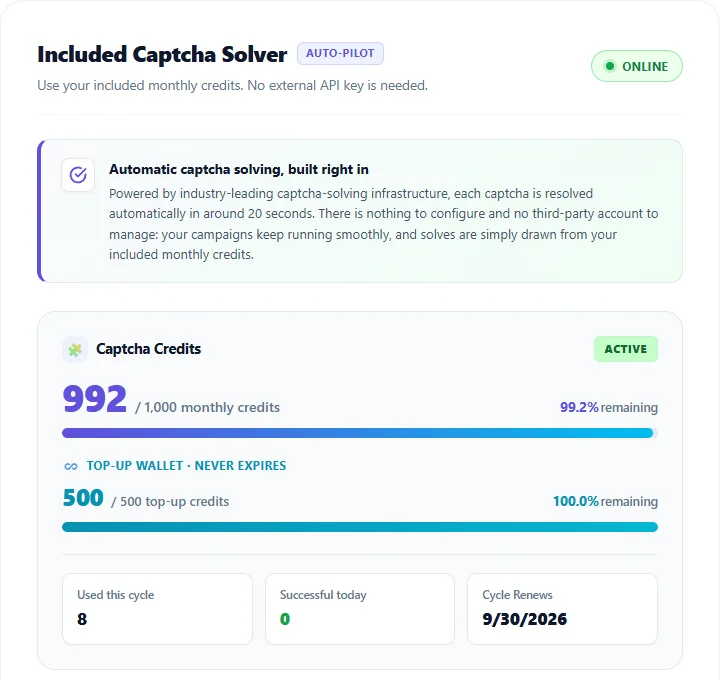
The solver is also available as a Solve Captcha node in the new workflow editor, so you can place it exactly where a challenge tends to appear in a longer journey. Since the 2.1 releases, captcha rates on clean residential IPs were already low; 2.2 handles the ones that remain without a human in the loop.
Until now, a campaign was a list of tasks in a form editor: one task at a time, top to bottom. That works for ‘search this keyword, click my site, browse three pages’. It does not work well for warm-ups before the target, branching by chance, loops over extracted data, or journeys that mix search, direct, and AI-driven visits.
Awesome Traffic Bot 2.2 adds a Flow view next to the Classic view in step 3 of the campaign wizard. Switch to Flow and your tasks become nodes on a canvas. Click a palette item and it is added and wired to the previous node; drag it if you want a different position; press Tidy and the graph re-arranges itself. Flows and classic tasks are two views of the same campaign, so nothing you built before is lost.
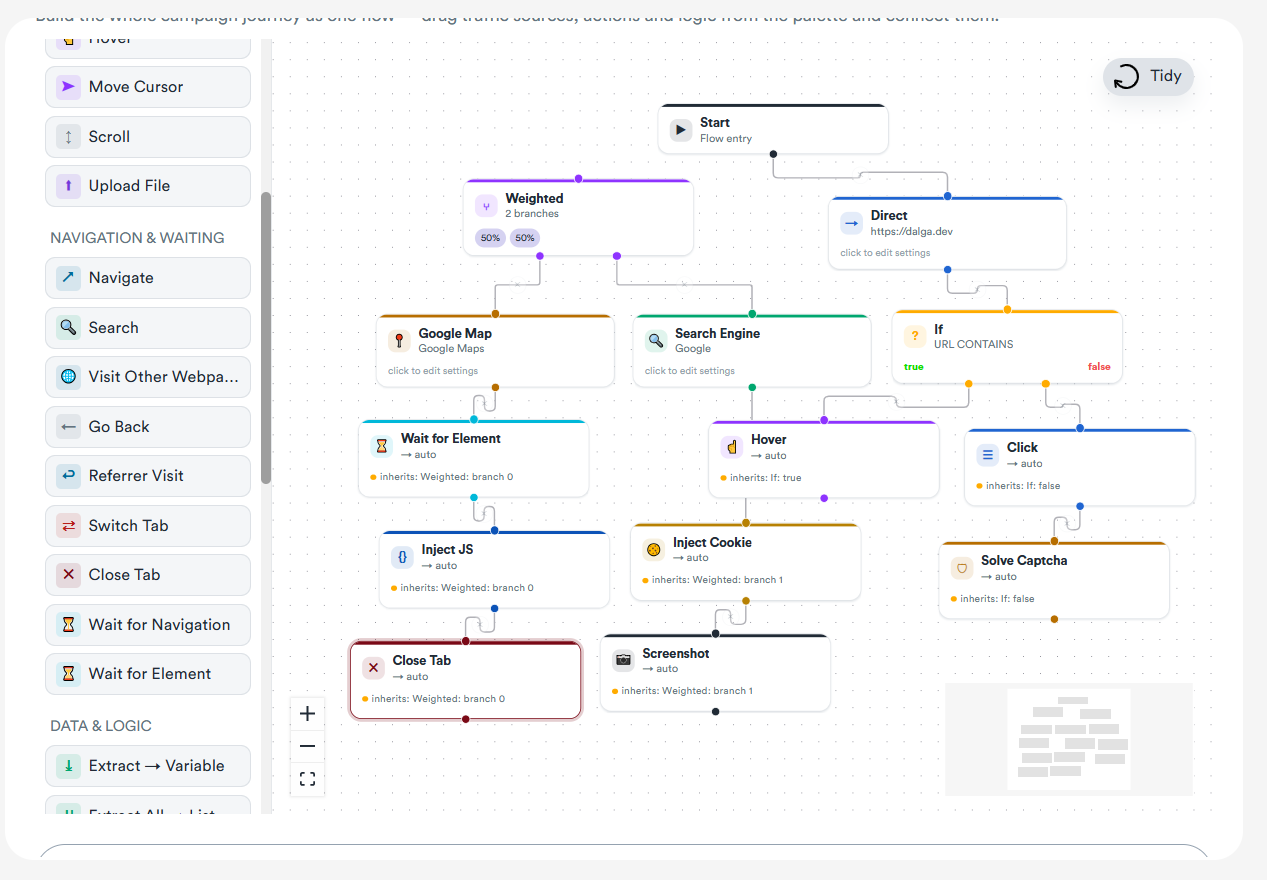
The palette is grouped so you can find what you need without reading a manual:
Two nodes in Awesome Traffic Bot 2.2 deserve a special mention. The Weighted Split node sends, for example, 70 percent of visitors down one path and 30 percent down another. This is the simplest way to stop every session from looking identical. Extract to Variable reads a value from the page into a variable you can reuse downstream, so a Navigate node can open a search for the product name it just read. If you have used the classic Advanced Functions, they still exist and appear as step nodes when you open a campaign in Flow view.
If you want a starting point, these three patterns cover most of what our agency users asked for. Each takes a few minutes on the canvas and none of them needs code.
https://www.google.com/search?q={{product}}. The bot searches for whatever it just saw, which is exactly what a curious shopper does. Pair Extract All to List with a Loop to walk through every product on a category page.Drop a Solve Captcha node right after any Search Engine node in these Awesome Traffic Bot 2.2 flows. If a challenge appears, it is cleared in place; if none appears, the node simply passes through. Save the campaign and clone it for the next client; the flow travels with it.
Want to see the workflow editor on your own campaigns? It is part of every Awesome Traffic Bot 2.2 license. See the plans.
Browser profiles are what make a returning visitor look like a returning visitor: cookies, history, and identity carried from one session to the next. Agencies asked for two things: control over where those folders sit on disk, and a way to keep one client’s profiles apart from another’s. Awesome Traffic Bot 2.2 answers both.
Globally, under Settings in Awesome Traffic Bot 2.2, a new Browser profile storage location block sets two default folders: one for temporary profiles that are discarded after a run, one for saved (persistent) profiles that you intend to reuse. Leave them empty to keep the built-in location, or point them at a larger drive.

Per campaign, open the Browser Profile option in step 1 of the wizard, expand Advanced Settings, and set a Profile storage location for that campaign alone. The same override exists per browser profile group. This is how you keep a local-SEO client’s warmed profiles in one folder and an e-commerce client’s in another, with no risk of mixing them. Note that the setting applies to the internal browser only; external browsers such as AdsPower manage their own storage.
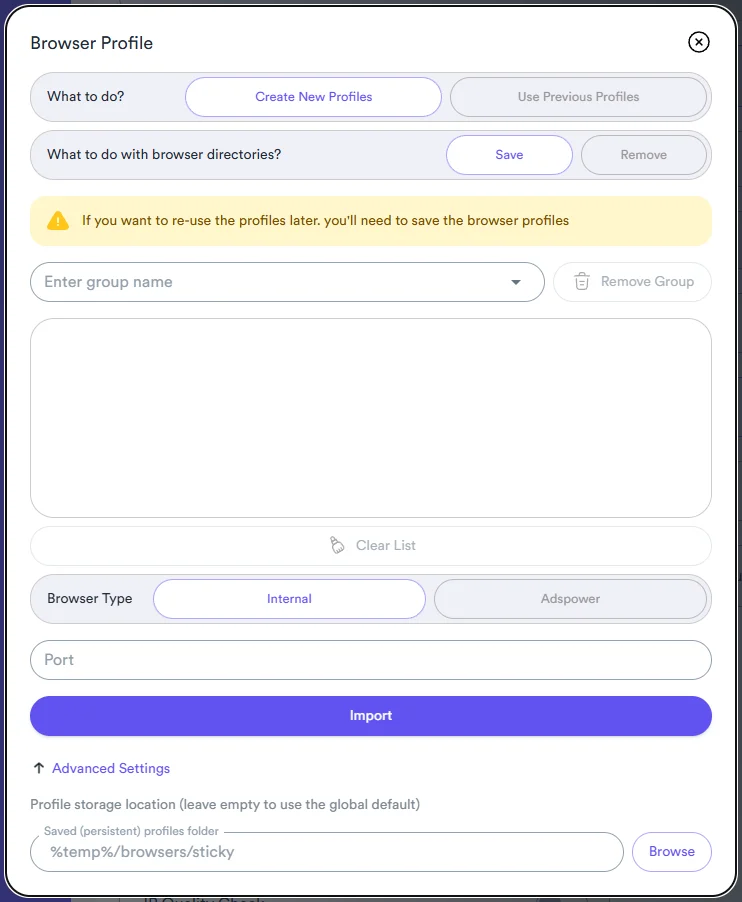
If you are new to profiles, our guide on the browser profiling feature in Awesome Traffic Bot explains why persistent profiles matter for realistic returning-visitor behavior.
Awesome Traffic Bot was the first CTR bot with a real AI mode: you describe a visit in plain language and a language model reads the page and performs it. The catch was cost. Every AI-driven session consumed tokens on a cloud provider, and at hundreds of visitors a day that adds up.
Awesome Traffic Bot 2.2 adds Local (Ollama) as a provider under Settings, AI. Pick it and the API key field disappears, because there is none. Three local models are offered out of the box: Qwen3 14B (recommended), Qwen3 8B (faster), and Qwen3.6 27B (higher quality, slower). The setup is three steps:
ollama pull qwen3:14b.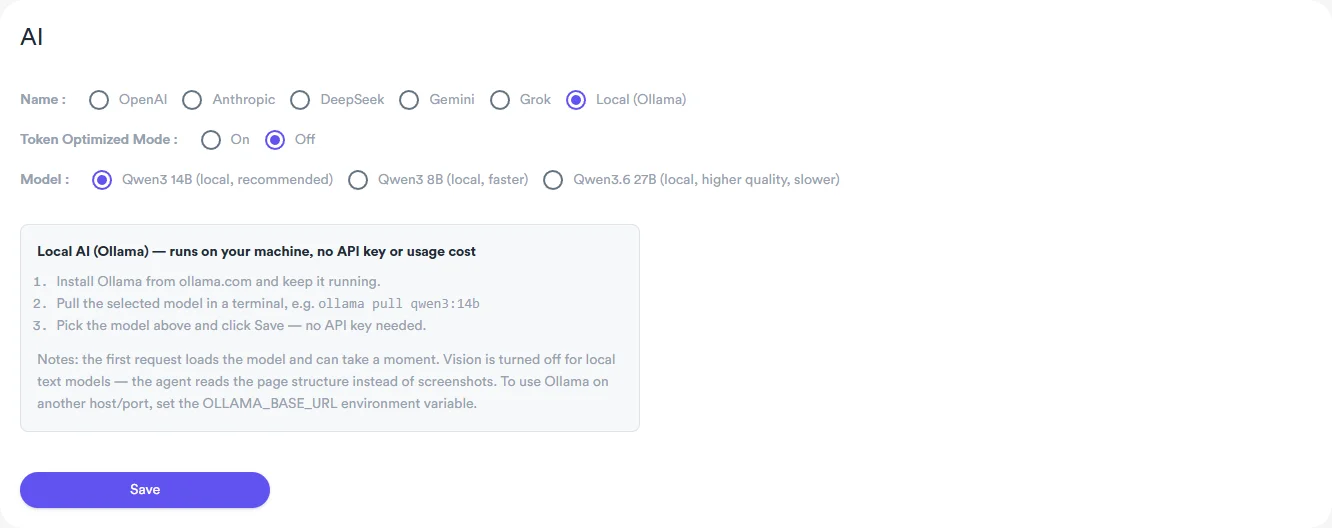
Three things to know before you switch. The first request after a restart loads the model into memory and takes a moment. Vision is turned off for local text models, so the agent reads the page structure instead of screenshots. This is faster and works well for navigation, reading, and form filling. And if Ollama runs on another machine in your network, the app honors the OLLAMA_BASE_URL environment variable. Larger models give noticeably better judgment, so plan for 14B or above if your hardware allows it.
Local AI is free of API costs, not free of hardware costs. A language model runs on your own machine, and it needs a modern GPU with enough video memory, or a large amount of system RAM, to answer in a usable time. If Local AI is slow, times out, or Ollama refuses to load a model, the cause is almost always the hardware, not Awesome Traffic Bot 2.2. Cloud providers such as DeepSeek or Gemini have no such requirement and remain the right choice for most laptops and small VPS machines.
Rough minimums we recommend for Local AI in Awesome Traffic Bot 2.2, on top of what the app and its browsers already use:
| Local model | GPU (recommended) | CPU-only fallback | Expect |
|---|---|---|---|
| Qwen3 8B | NVIDIA GPU with 8 GB VRAM or more | 16 GB RAM, 8 modern cores | Usable on GPU; slow on CPU, several seconds per decision |
| Qwen3 14B (recommended) | NVIDIA GPU with 12 to 16 GB VRAM | 32 GB RAM, 8 or more cores | Good on GPU; on CPU each decision can take 10 to 30 seconds or more |
| Qwen3.6 27B | NVIDIA GPU with 24 GB VRAM | 64 GB RAM, workstation CPU | Server or workstation class only |
OLLAMA_BASE_URL.ollama run qwen3:14b answers in a terminal on the same machine; if it does not, the app cannot use it either.If your machine does not meet the table above, keep AI Mode in Awesome Traffic Bot 2.2 on a cloud provider with Token Optimized Mode on. It costs cents per session and works on any PC that can run the bot. Local AI is an option for people who already own the hardware, not a requirement of Awesome Traffic Bot 2.2.
There is no single right answer, so here is how we choose. Start with Qwen3 8B if your GPU has 8 GB of video memory and you mostly need reading, scrolling, and simple clicks; it is the fastest of the three. Move to Qwen3 14B, the recommended default, when prompts involve forms, multi-step navigation, or judgment calls such as picking the most relevant result. Reserve Qwen3.6 27B for a workstation or server with a 24 GB GPU, where quality matters more than session speed. Whatever you pick, write prompts with one goal per sentence; local models follow short, concrete instructions far better than long ones.
Cloud models still make sense in two cases: when you need vision, because the local text models read page structure rather than screenshots, and when you run AI sessions on a machine that cannot host a model. In both cases Token Optimized Mode keeps the cost down. Many users will end up mixing the two, local for volume and cloud for the handful of campaigns that need a stronger model.
The cloud side moved forward too. OpenAI now lists the GPT-5.6 family, including the Terra and Luna variants, with GPT-4o kept as a legacy option, and Anthropic, DeepSeek, Gemini, and Grok remain available. Token Optimized Mode is still there for anyone who wants cloud quality at a lower token count. For prompt-writing advice that applies to both local and cloud models, see our AI prompt tips for traffic bots.
Under the headline features, Awesome Traffic Bot 2.2.0 carries a long list of fixes across the engine and the browser bridge, the component that drives the anti-detect browsers. You will notice it most in multi-threaded runs, where sessions start and finish more predictably. This work continues the server-side adaptation we shipped for Google’s goto link update in August, so both the search side and the browser side are current.
Click the exclamation icon in the top bar of the app to open the Update Center. The 2.2.0 package is about 421 MB. Press Download, let the app restart, and you are on Awesome Traffic Bot 2.2. Your license, campaigns, and settings carry over; there is nothing to reinstall or re-activate. The version shows in the bottom-left corner of the sidebar as UI 2.2.0 and Core 2.2.0.0.
Three things worth doing before you press Download:
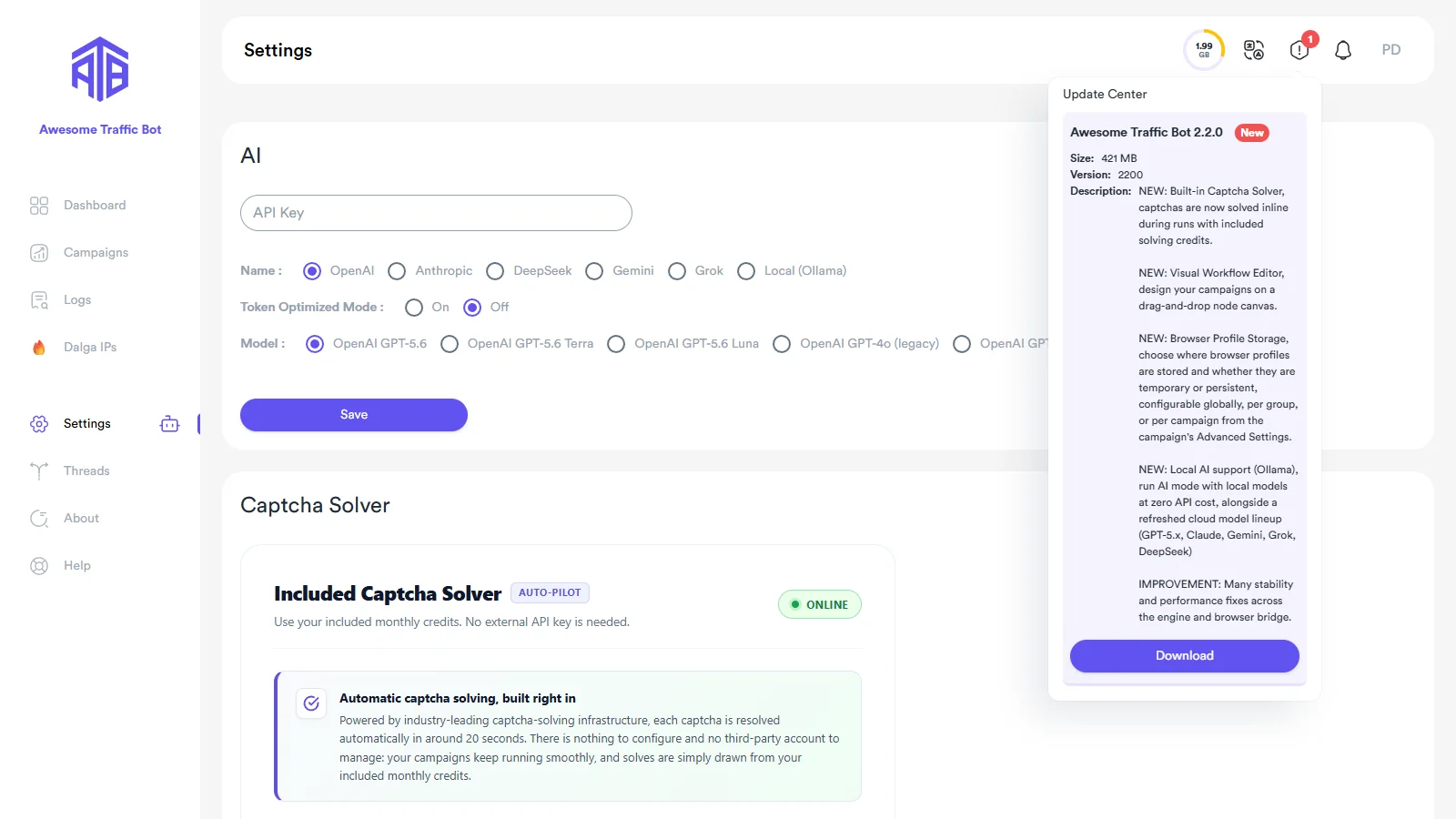
If you are on an older build and the Update Center does not show Awesome Traffic Bot 2.2.0 yet, restart the app once; the update check runs on launch. The updates page in the documentation covers the details, including what to do if a download is interrupted.
Nothing in Awesome Traffic Bot 2.2 changes the fundamentals. Google has never confirmed click-through rate as a direct ranking factor, and traffic that looks fake carries real risk. What the 2.2 features do is make realistic traffic easier to produce: residential IPs, persistent profiles, varied journeys through weighted splits, and an AI that behaves like a reader. Use them that way. Start small, keep bot sessions well below your real impressions for a keyword, and monitor Search Console and Google Analytics before you scale.
We build the tool for legitimate businesses that want to be seen for the terms they already deserve, not for pushing thin pages to the top. The safety guidance in our CTR bots explained guide still applies word for word.
No. Open the Update Center from the exclamation icon in the app’s top bar and click Download. The 2.2.0 package installs over your current build, and your license, campaigns, and settings stay in place.
Yes. Version 2.2 is a regular update within your license, and the captcha solver comes with a monthly allowance of included solving credits. Top-up credits are optional and only needed if you run more captcha-heavy campaigns than the allowance covers.
Yes. Choose Local (Ollama) under Settings, AI, pick one of the bundled Qwen3 models, pull it with the ollama command shown in the app, and click Save. No API key is needed, and the AI runs entirely on your machine or on another host you point the app to. It does need real hardware: an NVIDIA GPU with 8 GB of VRAM for Qwen3 8B and 12 to 16 GB for Qwen3 14B, or a lot of RAM and patience on CPU. If Ollama is slow or fails to load, check the hardware first; cloud providers have no such requirement.
No. Plans still start at $24.90 per month on the annual plan, billed as $299 per year, or $49 month to month. Every plan covers two devices and includes the 2.2 features described here.
Facts in this guide come from the following primary sources, checked on 6 September 2026.
Existing users: open the Update Center and you are done. New users: Awesome Traffic Bot 2.2 starts at $24.90 per month on the annual plan, or $49 month to month, for two devices, with the captcha solver, the workflow editor, profile storage, and local AI included.
Recommend the tools you already use and earn recurring commission through the Dalga affiliate program.