
RankShark Integration in Awesome Traffic Bot: Track Google Maps Rankings Inside ATB (2026)
The RankShark integration brings Google Maps grid rank tracking, AI visibility and before/after comparison into Awesome Traffic Bot. Here is how to connect it and use it.
 By Dalga team
10 min read
Rank tracking
What the RankShark integration in Awesome Traffic Bot does
The RankShark integration puts RankShark Track, Dalga’s own rank tracker for Google Maps, Google Search, Bing and AI answers, right inside Awesome Traffic Bot. A new RankShark Track tab in the ATB sidebar lets you see where your Google Business listing ranks on every street around it, whether AI answers recommend you, and how all of it changes over time. You just connect it with the same dalga.dev account you already use for ATB, and everything you see in the app is also in the RankShark web panel.
Key facts
Detail
- Where
- New RankShark Track tab in the Awesome Traffic Bot sidebar
- Account
- One sign-in with your dalga.dev account; same data in ATB and at rankshark.io
- Tracks
- Google Maps, Google Search (beta), Bing Maps, Bing Search and AI visibility
- AI visibility
- Google AI Overviews and Gemini; ChatGPT and Perplexity too from the Pro plan up
- Local rank tracking
- Geo-grid you size yourself (e.g. 7×7 across 5 km), each point searched from its own GPS location with residential IPs from that area
- Scans
- Scheduled daily, weekly or monthly, plus one-off Quick scans
- Measuring results
- Compare with: last scan, 7 days ago, 30 days ago or since the start
- From ATB campaigns
- Scan in RankShark and Track in RankShark in the campaign menu, pre-filled for you
| RankShark integration at a glance | Detail |
|---|---|
| Where | New RankShark Track tab in the Awesome Traffic Bot sidebar |
| Account | One sign-in with your dalga.dev account; same data in ATB and at rankshark.io |
| Tracks | Google Maps, Google Search (beta), Bing Maps, Bing Search and AI visibility |
| AI visibility | Google AI Overviews and Gemini; ChatGPT and Perplexity too from the Pro plan up |
| Local rank tracking | Geo-grid you size yourself (e.g. 7×7 across 5 km), each point searched from its own GPS location with residential IPs from that area |
| Scans | Scheduled daily, weekly or monthly, plus one-off Quick scans |
| Measuring results | Compare with: last scan, 7 days ago, 30 days ago or since the start |
| From ATB campaigns | Scan in RankShark and Track in RankShark in the campaign menu, pre-filled for you |
Until now, Awesome Traffic Bot handled half the job: it sent the traffic. Whether that traffic moved your rankings, you had to check somewhere else, usually by searching your keyword from your own location and hoping it was representative. It rarely is. For a local business, your position on Google Maps can shift from one street to the next.
The RankShark integration closes that loop. ATB drives the traffic, RankShark measures the result, both on one Dalga account. Below we go through how to connect it, what each part does, and the workflow we use ourselves: scan, run a campaign, compare.
What is RankShark?
RankShark is Dalga’s own ranking platform, built by the same team as Awesome Traffic Bot. RankShark Track reads where a business ranks on Google Maps, Google Search, Bing Maps and Bing Search from every point around it, and whether AI answers mention it. Every scan reports the same few figures, ARP, ATRP, share of local voice and found in top 20, so this month and last month line up. You can use it on its own at rankshark.io, and now it is built into ATB as well.
Why a traffic bot needs a rank tracker
CTR and engagement signals are only worth sending if you can see what they change. If you have read CTR bots explained or our guide to sending clicks to your Google Business page, you know the advice: start small, keep volumes realistic, and watch the numbers. The watching part used to mean a separate tool, a separate login and a spreadsheet to line up dates.
With RankShark inside ATB, the rank data lives right next to the campaigns that are meant to move it. You can see the before, run your campaign, and see the after, without exporting anything.
How to connect RankShark Track to Awesome Traffic Bot
Update to the latest Awesome Traffic Bot from the Update Center inside the app, then:
- Open RankShark Track in the sidebar (it has a new tag). You will see two buttons: See Track plans and Connect RankShark Track.
- Choose a plan with See Track plans and check out. Your Track workspace is ready a few seconds later.
- Back in ATB, click Connect RankShark Track and sign in with the same dalga.dev account you used to buy Awesome Traffic Bot. That is the only sign-in.
- The tab switches to your live RankShark dashboard. The account menu shows that RankShark is signed in through Awesome Traffic Bot on this PC, along with your plan.
To unlink a computer later, open the same account menu and choose Disconnect this PC.
One Dalga account: the RankShark web panel and ATB show the same data
From the account menu, Open full RankShark in the browser opens the RankShark web panel. Everything on RankShark uses the same login. It is connected to the same Dalga account, with the same campaigns and the same numbers. Use whichever is closer: the ATB tab while you are working on campaigns, the web panel on another computer or on the go.
What you get inside ATB
A rank tracking dashboard
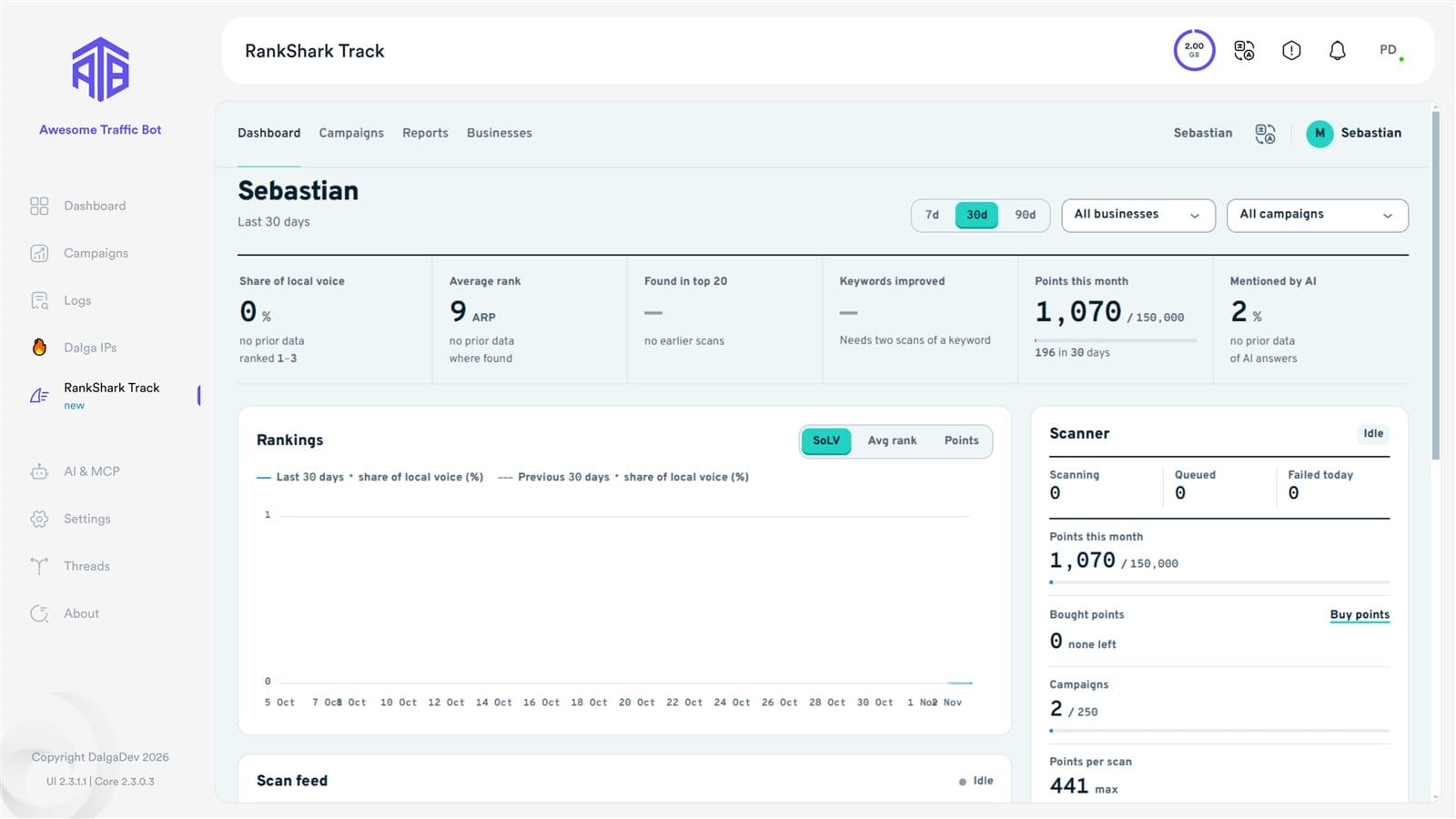
The dashboard gives you the whole picture for the last 7, 30 or 90 days, for all businesses or one campaign:
- Share of local voice: how much of the map you own in the top 3.
- Average rank: your average position where you were found (how ARP and ATRP are calculated).
- Found in top 20: how often you show up at all.
- Keywords improved: keywords that moved up between scans.
- Mentioned by AI: the share of AI answers that name your business.
On the right, the Scanner card shows the points you have used this month, your campaigns and any scans waiting in the queue.
Campaigns for Google Maps, Google Search, Bing and AI visibility
Each business or website becomes a campaign: Google Maps, Google Search, Bing Maps, Bing Search or AI visibility. RankShark scans every keyword on a schedule, daily, weekly or monthly, and the Upcoming panel shows when the next scan runs. Run all scans everything at once when you want fresh numbers now.
Google Maps rank tracking on a geo-grid
This is the part local businesses will use most. Instead of one rank for one keyword, geo-grid rank tracking lays a grid over the area and checks your rank from every point of it:
- The grid is centered on your business by default, but you can drag it anywhere, for example over your whole service area.
- You choose the grid shape (square, circle or hexagon), the size, from 3×3 up to 21×21, and the radius, like a 7×7 grid across 5 km. Not sure what to pick? See which grid size and radius fit a business.
- Each point is searched from its own GPS location, using residential IPs from that same area, so the results are what a real customer standing there would see.
- For website rankings in Google Search or Bing, you can search from a city or a ZIP code instead.
The map is colored by rank: green for #1 and the top 3, yellow and orange through the top 10, red for 11 to 20, and grey where you are not in the top 20 at all. One look tells you which neighborhoods you own and which ones a competitor does. This is the core of the RankShark Google Maps rank tracker.
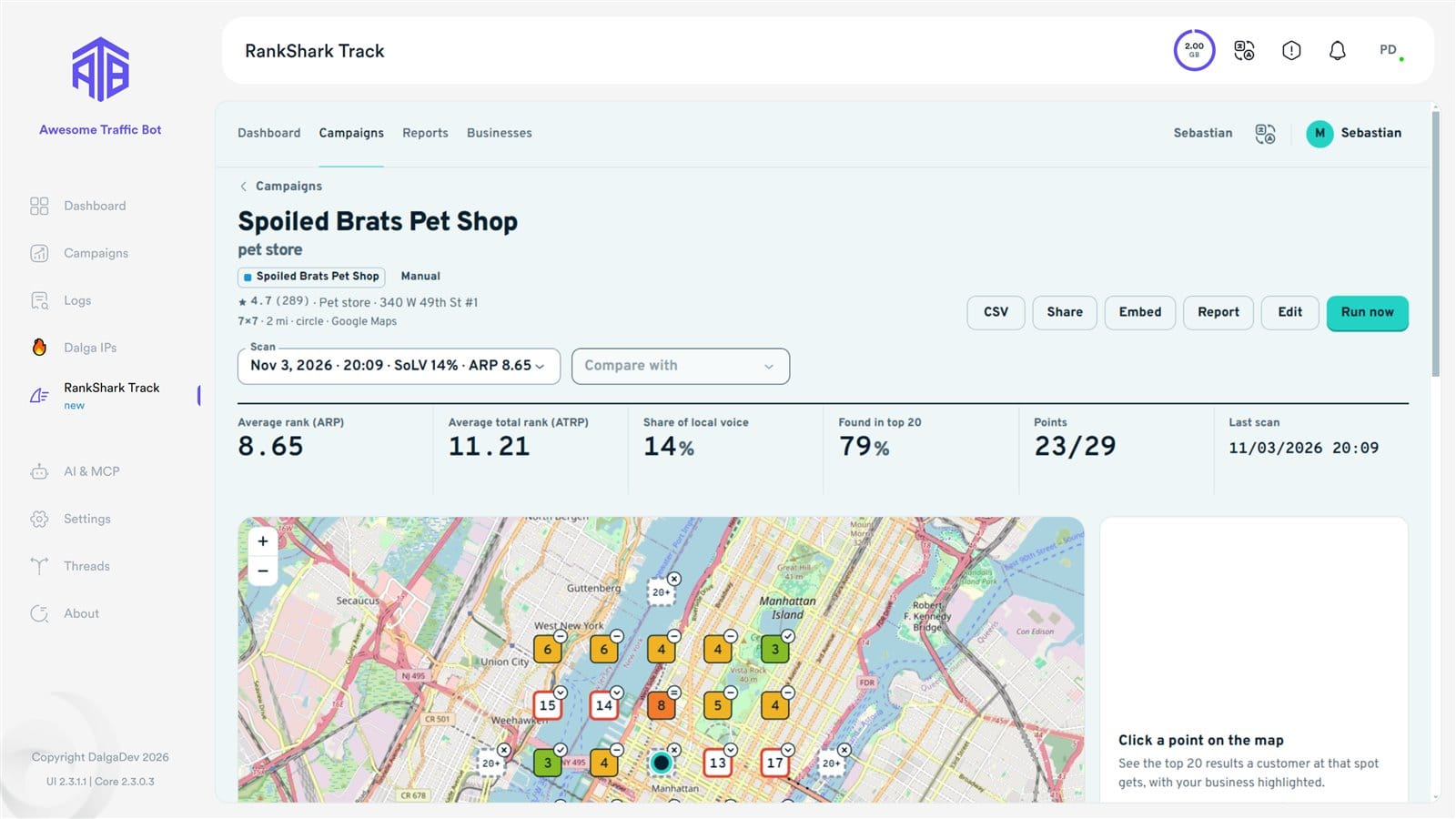
AI visibility: AI Overviews, Gemini, ChatGPT and Perplexity
Search is not only ten blue links anymore. RankShark asks your prompts on Google AI Overviews and Gemini, and on ChatGPT and Perplexity from the Pro plan up, and checks whether they recommend your business. If they do not, you see who they name instead and which sites they cite, which tells you where to work next.
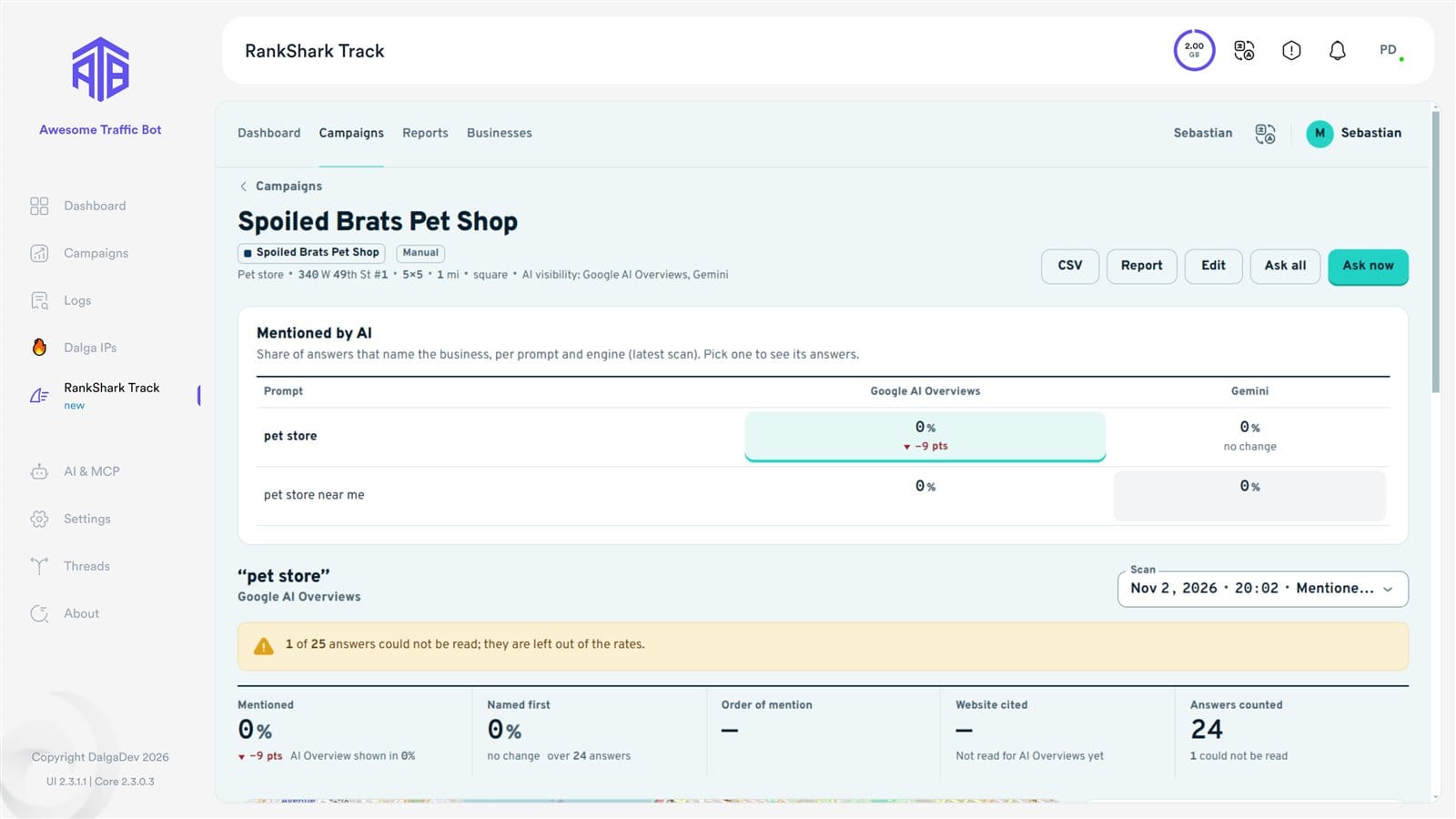
Compare with: see what your ATB campaigns changed
Inside any campaign, Compare with checks today against your last scan, 7 days ago, 30 days ago or since the start. For every keyword you get Start Now, 7 days and 30 days side by side, so you can see exactly how much changed in each period, and how much your Awesome Traffic Bot campaigns moved the needle.
Quick scan: check any business, then save it as a campaign
A Quick scan is a fast, one-off scan of any business, yours or a client’s, with no campaign needed. It takes three steps:
- Business: choose what to track, for example Google Maps, and find the business.
- Where: set the center and the radius.
- Keywords & engine: enter the keyword and start the scan.
The result shows the business’s rank at every point of the area. Click any point to see the top 20 results a customer standing right there would see, with your business highlighted. Below the map, the Competitors table ranks every business seen in the scan by strength, and you can open each competitor’s own grid, since every competitor gets its own grid. Use Download PDF or Share link to send the report to a client.
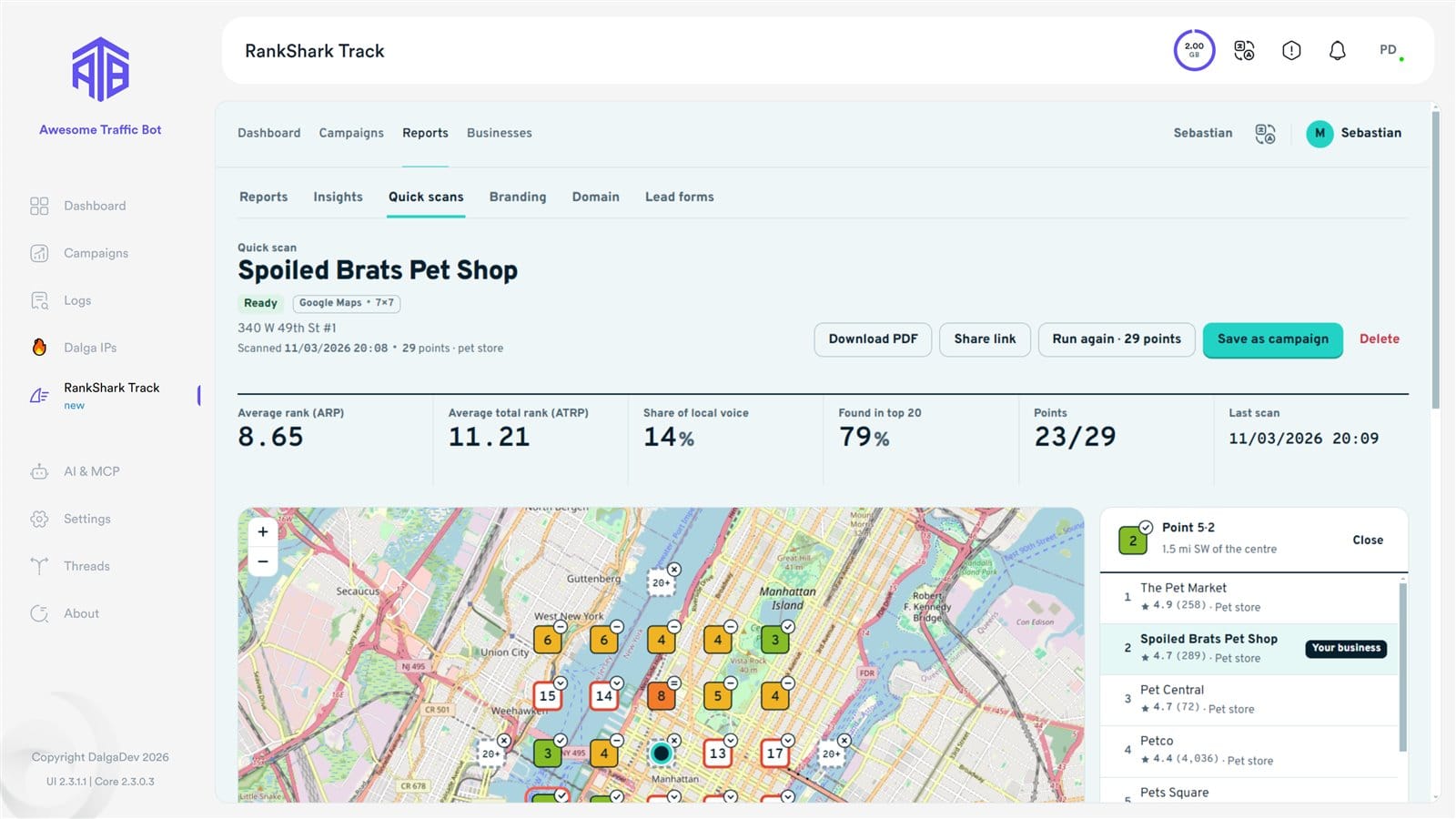
If you want to follow that business over time, click Save as campaign. All the settings from the scan move into a new campaign, and RankShark keeps tracking it from then on. The campaign page shows your average rank, share of local voice, keywords moving up and your rank distribution, and every new scan makes the trend clearer.
No plan yet and you only want one look at one business? The free Google Maps rank checker on rankshark.io scans 49 points around any business and emails you the report, no account needed. It is the same grid, so the numbers line up with what you will see in ATB later.
Start from your ATB campaigns: Scan in RankShark and Track in RankShark
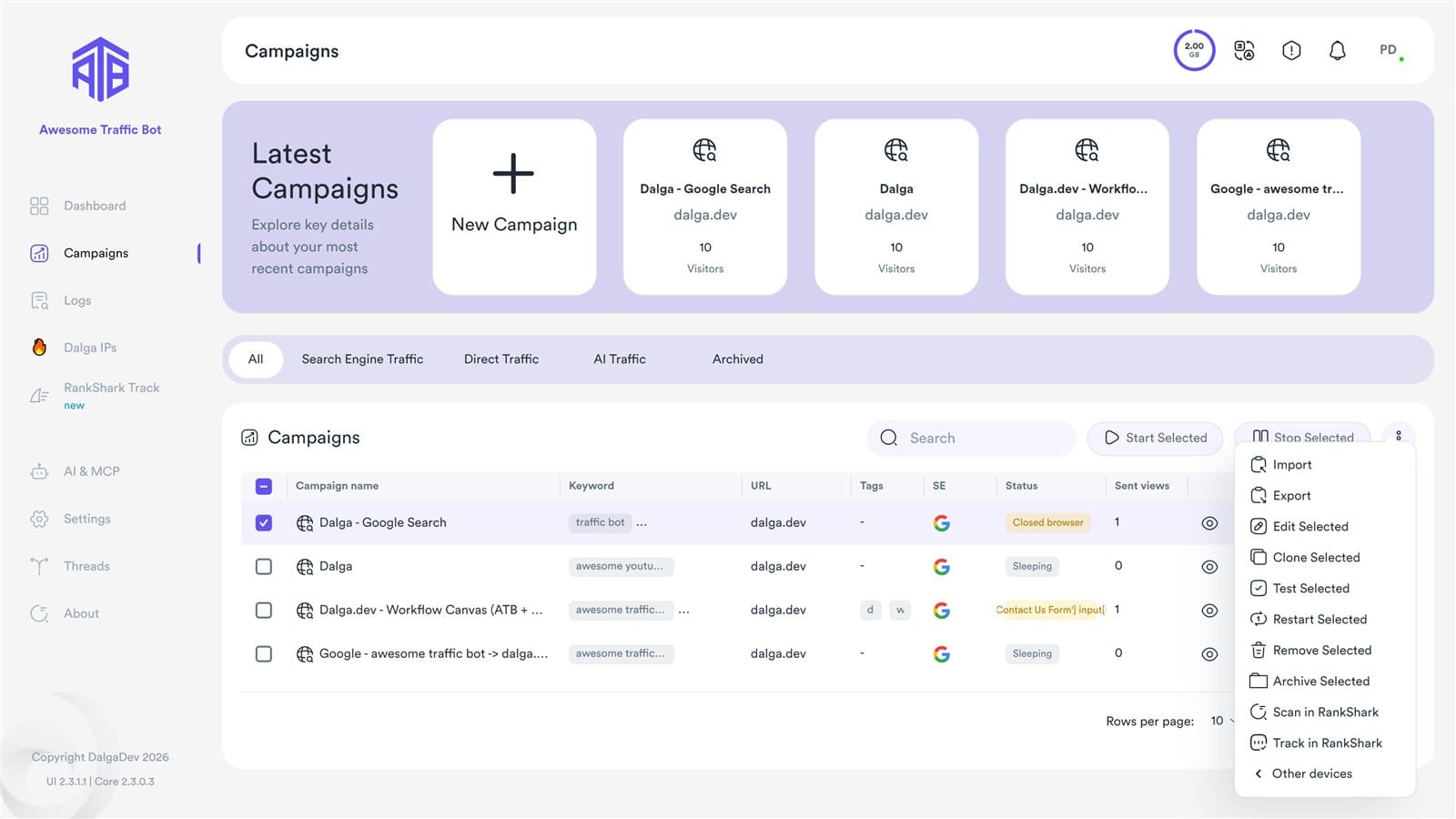
You do not have to retype anything. In Awesome Traffic Bot, go to Campaigns, select a campaign and open the three-dots menu. Two new options are there:
- Scan in RankShark sends it over as a Quick scan.
- Track in RankShark turns it into a RankShark campaign.
Either way, the website, the search engine and the keywords are filled in from your ATB campaign. Check the details and run it.
Our workflow: scan, send traffic, compare
- Run a Quick scan of the business and save it as a campaign. That is your baseline.
- Set up the traffic in ATB. For Maps, use Dalga IPs in the same city as the grid, so visits come from where the customers are.
- Let RankShark scan on a schedule. Weekly is enough for most local campaigns; daily only pays off while you are changing things.
- After a couple of weeks, open the campaign and use Compare with > 30 days ago. Keep what moved, change what did not.
RankShark Track plans and points
RankShark runs on points: every spot scanned on the map uses one point, so a 7×7 circle grid with 29 points uses 29 points per keyword scan. Plans differ in points per month, how many campaigns you can run, keywords per campaign, scan frequency, which AI engines are included, white-label reports with your own brand, and team members. You can pay monthly or yearly; choose a plan from See Track plans in the RankShark Track tab, or compare them on the RankShark Track pricing page.
Frequently asked questions about the RankShark integration
What is the RankShark integration in Awesome Traffic Bot?
It brings RankShark Track, Dalga’s rank tracking service, into Awesome Traffic Bot as a new sidebar tab. You can track Google Maps, Google Search, Bing and AI visibility rankings and compare them over time without leaving the app.
Do I need a separate RankShark account?
No. You sign in once with the same dalga.dev account you use for Awesome Traffic Bot. You do need an active RankShark Track plan, which you can pick from See Track plans in the tab.
How does RankShark track Google Maps rankings?
It searches your keyword from every point of a grid you choose, for example 7×7 across 5 km. Each point uses its own GPS location and residential IPs from that area, and the map is colored by rank from green (#1) through yellow and orange to red (ranks 11 to 20), with grey where you are not in the top 20.
Which AI engines does RankShark check?
Google AI Overviews and Gemini on every plan with AI visibility, plus ChatGPT and Perplexity from the Pro plan up. For each prompt you see whether your business is mentioned, who is named instead and which sites are cited.
How do I see if my ATB campaigns improved my rankings?
Open the RankShark campaign and use Compare with to measure today against the last scan, 7 days ago, 30 days ago or since the start. Each keyword shows Start, Now, 7 days and 30 days side by side.
How are RankShark points counted?
Every spot scanned on the map uses one point. A grid with 29 points uses 29 points per keyword per scan, so grid size and scan frequency decide how fast you use them.
Can I share RankShark reports with clients?
Yes. Download any report as a PDF or send it with Share link. Plans with white-label reports let you put your own brand on them.
How do I disconnect RankShark from a computer?
Open the account menu in the RankShark Track tab and click Disconnect this PC.
Try the RankShark integration on your own campaigns
RankShark Track is available now in the latest version of Awesome Traffic Bot. Update from the Update Center, open RankShark Track in the sidebar and connect your Dalga account. Want the full tour first? See RankShark Track on rankshark.io. New to ATB? See what changed in Awesome Traffic Bot 2.3, then get the app and connect RankShark on day one.
Awesome Traffic Bot
Awesome Traffic Bot drives realistic search, referral, direct, and social traffic with built-in residential IPs and AI-driven browsing. Boost CTR across Google, Bing, Yandex, and DuckDuckGo, with no proxies or setup required.
- per month, annual plan ($299/yr)
- $24.90
- per month, monthly plan
- $49
- devices
- 2
Written by the Dalga team
We design and build Dalga products. Guides and release notes live on the blog, and every setting is documented on docs.dalga.dev.
Keep reading
All Rank tracking postsAwesome Traffic Bot 2.3 Is Out: AI Agents, Smarter Workflows and 3 Other New Features (2026)
Awesome Traffic Bot 2.3 lets an AI agent build and run your campaigns, gives workflows a plan B when a step fails, and cuts proxy traffic. Here is…
Send Views From YouTube Search: Easy 2026 Guide
How to send YouTube search views instead of direct traffic, in 5 easy steps: keyword choice, campaign setup, IPs, identity, and reading the Studio report.
YouTube Bot Watch Time: How Long Should a View Be?
How long a YouTube bot watch time should be for a view to count, why a range beats a fixed value, and a table of 5 durations matched to video length.